Administration
Settings
Administrator-only screen where the numbers and text that run your school are edited.
Current screens
These images use the current English interface. Student and trial-customer details are replaced with demo labels.
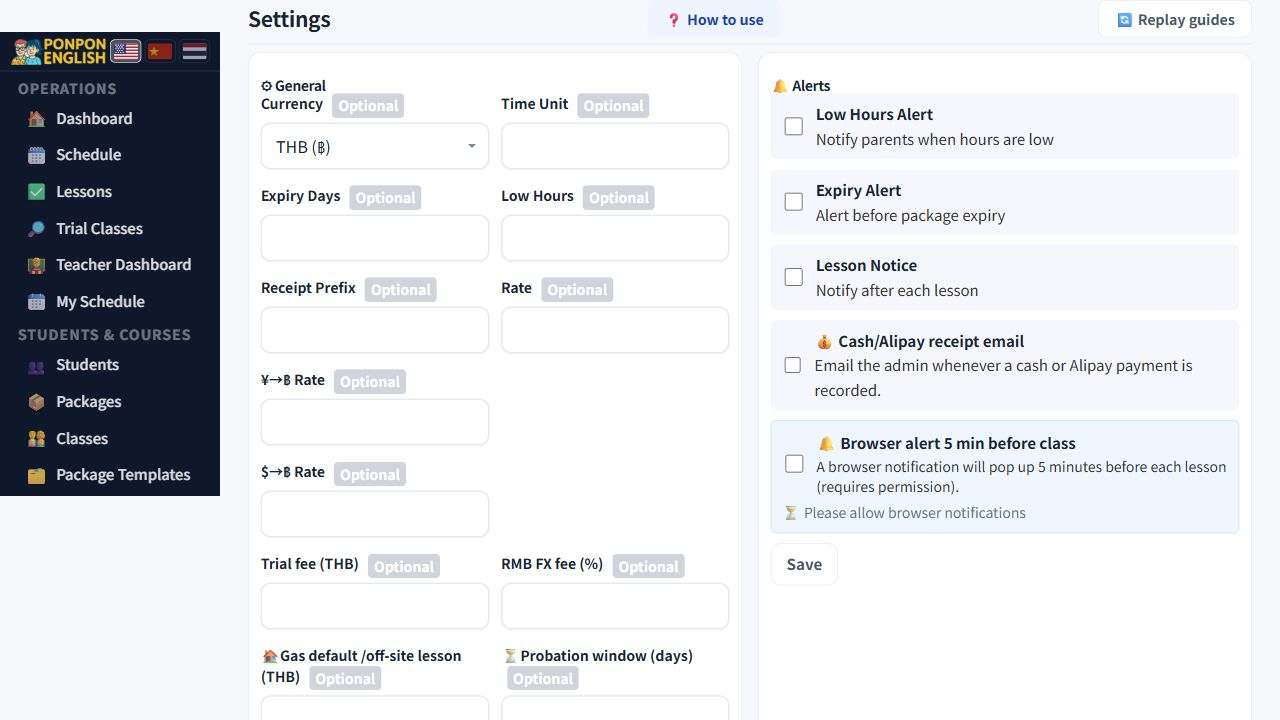
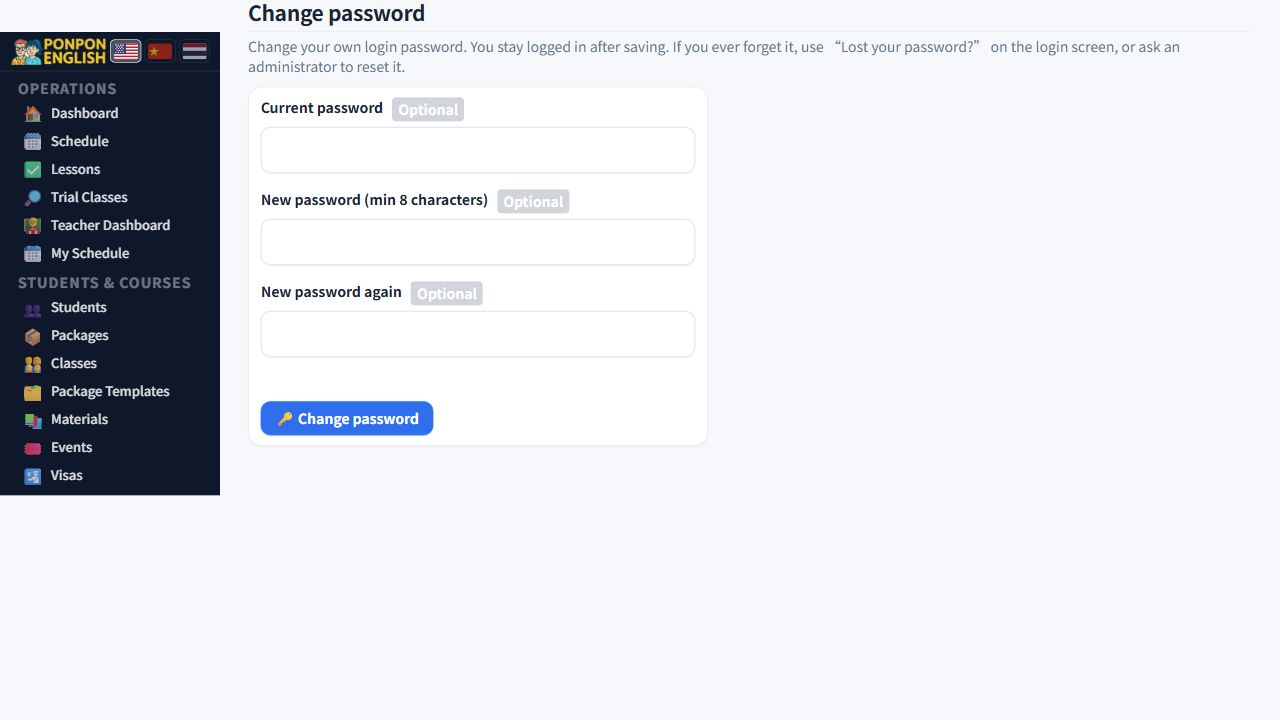
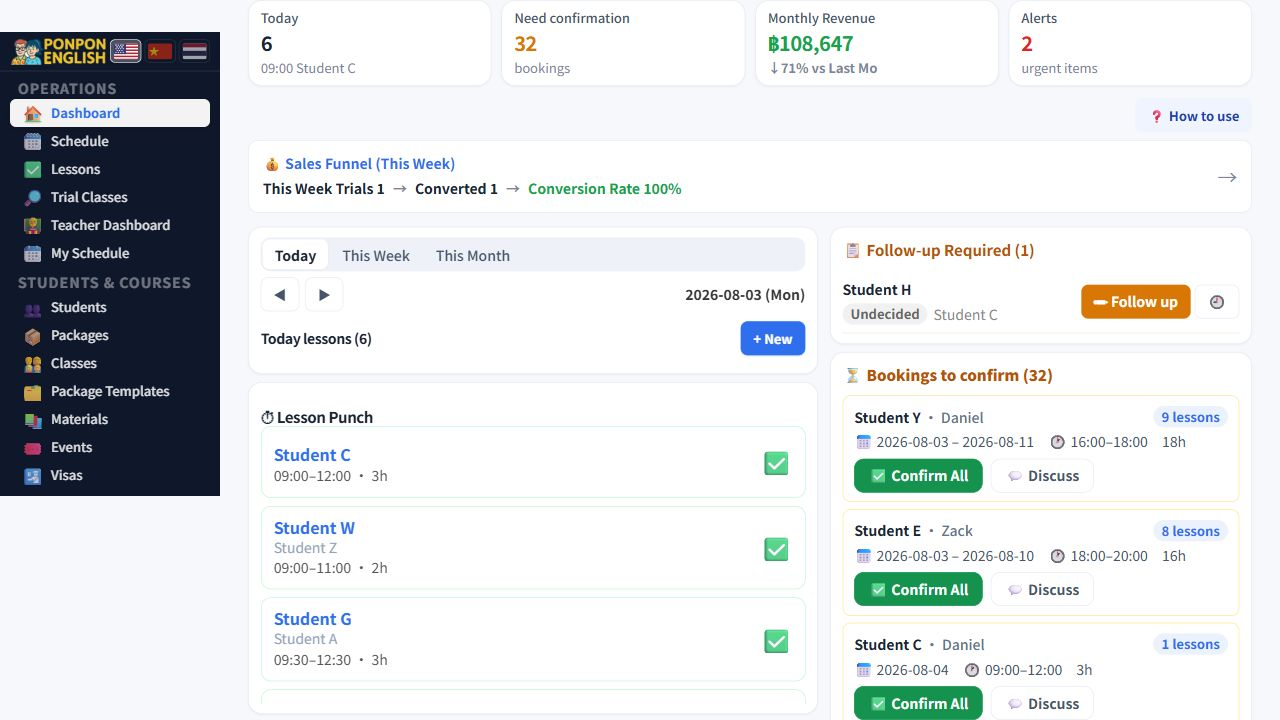
Who can open Settings
Administrator only.
设置 (settings) opens only for a WordPress administrator account. An owner or senior staff role is not enough. If you cannot open it, ask the person who holds the administrator account.
Anything that changes as your business changes lives here: rates, thresholds, addresses, images, colours. You edit it yourself. You never need a developer to change how the school runs.
What you can set
There are many fields. Do not read them one by one. Think in groups and open only the group you need.
School identity
Your school name and logo. These appear across the app and on what the system sends out, so set them first.
Portal address
The web address of your portal. Emails sent by the system build their links from this address. If it is empty or wrong, people receive email with links that do not open the right place.
Currency and exchange rate
The currency you work in and the exchange rate used for conversion. The rate can update automatically every day, so a second currency stays close to the real value without anyone typing it. Check the currency before you record the first payment of a new term.
Teacher pay
The hourly rate for each teacher rank, plus allowances. Change pay here rather than editing people one by one: every teacher on that rank follows the rank rate, unless that teacher has an individual rate on their own record.
Thresholds
Numbers that decide when the system warns you. The low-hours threshold decides when a student's remaining hours are flagged as running out. The probation length in days decides the probation end date calculated for a new teacher. Set both to match how your school really works.
Notifications
Switch each kind of notification on or off, and choose how often the digest is sent. Fewer, well-timed messages are read. Too many are ignored.
Daily schedule email
Set the time the daily schedule email is sent and who receives it. Choose a time early enough for teachers to read it before their first lesson.
Payment images and login page
Upload the payment QR images that customers scan to pay, and the background image of the login page. Replace a QR image on the same day your bank details change.
Interface colour and saved task settings
The interface colour is set here. The old daily task configuration remains saved for compatibility, but the separate task card is currently hidden from the dashboard and staff do not need to maintain it.
Page tutorials
The separate Tutorials page manages the short, first-visit tours opened by the question-mark button on each app page. Add steps under the correct page key, keep each instruction short, and test the tour in the role that will use it.
Working safely
- Change one group at a time.
- Save.
- Open the screen that uses the setting and check the result. After changing the daily schedule email time, wait for the next email and confirm it arrived.
- Tell your staff what changed, especially when it affects money or notifications.
Currency, exchange rate, rank rates and allowances feed payroll, payments and accounting. One typing mistake here can move many figures at once. Read the number back before you save.
When the same wrong number appears on several screens, the cause is usually a setting, not a record. Come here first.