Simple guide
A quick, easy overview.
Getting started
Three habits for teachers: install the app, mark lessons done, and check your pay.
Watch the system
Start with the Simple guide for a quick overview, then use the Detailed guide for the complete step-by-step process. Both are available below.
A quick, easy overview.
The full process, step by step.
These images use the current English interface. Student and trial-customer details are replaced with demo labels.
You do not need to learn the whole system.
As a teacher you use this system for three things: see your lessons, mark them done, and check your pay. Everything else is handled by the office.
The app opens in Chinese. Use the flag buttons at the top-left of the sidebar to switch to English or Thai.
The system works in a normal phone browser, but it is much faster if you add it to your home screen. Do this once.
Open the current school portal link provided by the office and sign in with your own email address first. If you have not given your email to the school yet, contact a staff member and tell them which email address to register.
You can change your password at any time from Account. If you forget it, use the password reset link on the login screen. Never borrow another teacher's login.
If the site offers to install the web app, please install it. Allow notifications when the browser asks so automatic features, including useful reminders before lessons, can work right away.
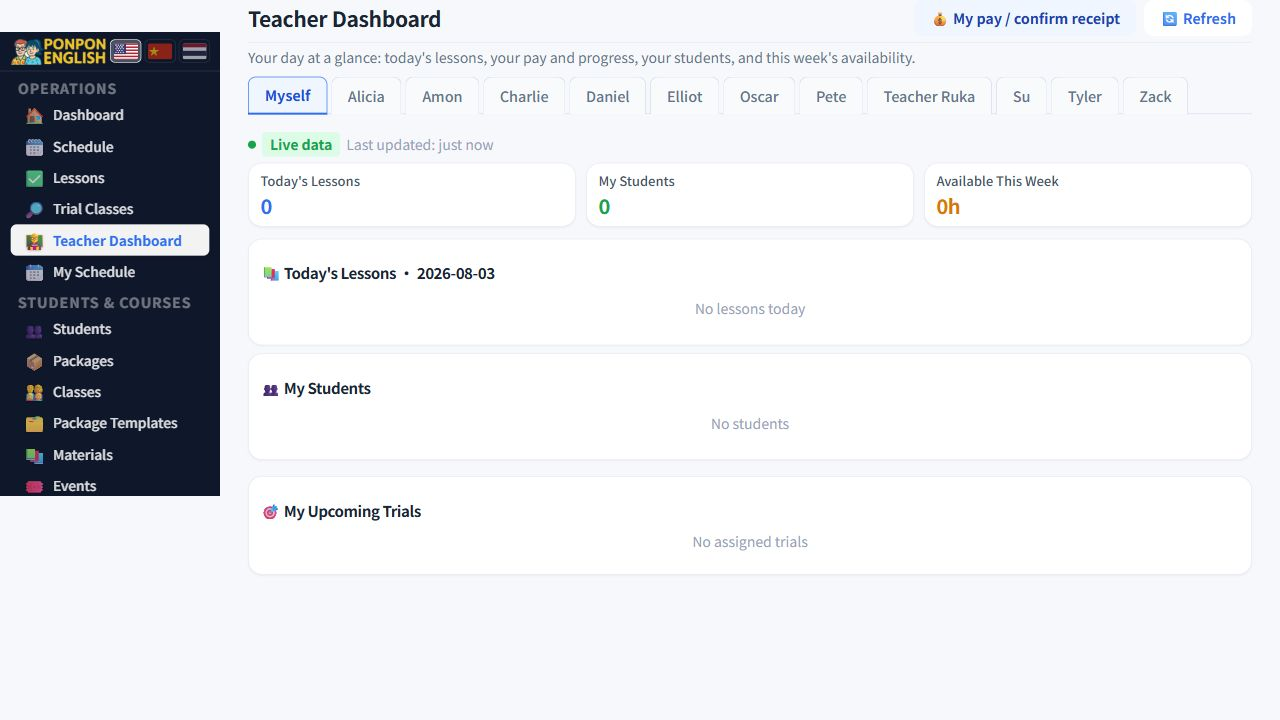
You can see your own lessons, your own students and your own pay. You cannot see school revenue, and you cannot see what other teachers earn. That is by design, so use the system freely.
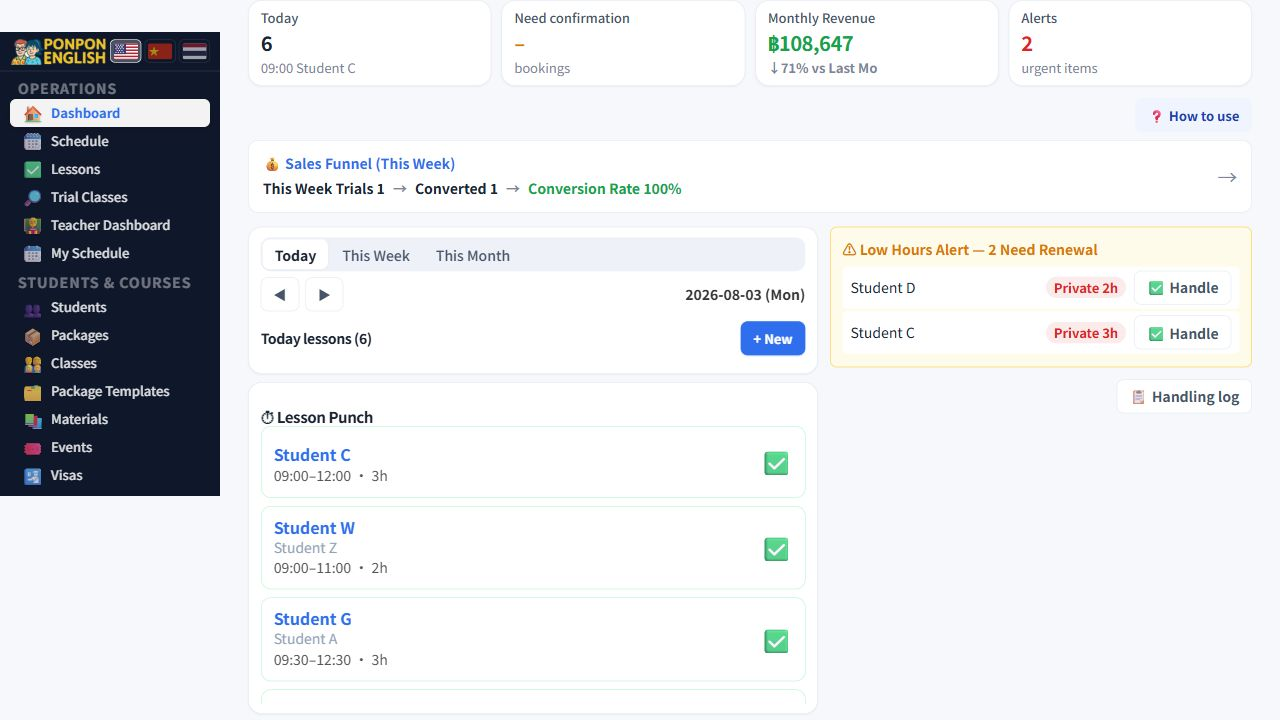
Use the dashboard to see what needs your attention before you open the timetable.
Open Dashboard first. It shows today's lessons, bookings waiting for confirmation, and the Lesson Punch card. The green checkmark in that card is the class confirmation button: tap it after you finish the lesson.
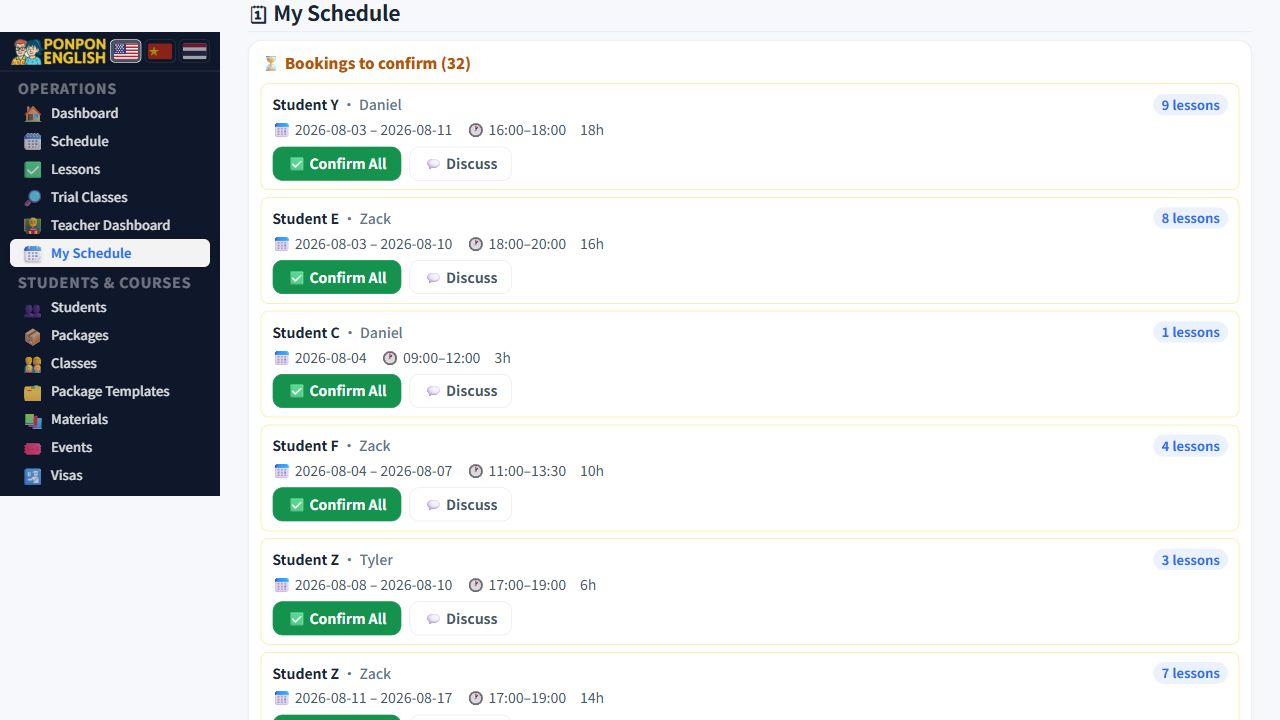
If several lessons are waiting, complete each lesson card separately. For bookings that still need approval, open My Schedule and use Confirm All only after you have checked the dates and times.
The dashboard is the quickest place to mark a finished class. My Schedule is the detailed timetable and the place to confirm bookings before teaching.
Keep your own calendar honest so the office can assign lessons correctly.
Open My Schedule and open your availability editor. Set the hours when you can teach as available. If you cannot teach, add an unavailable block for the whole day or for a specific time range. You can also set a weekly recurring block, such as every Thursday morning.
Do not rely only on LINE, email or a verbal message. PonPon is the single source of truth for scheduling. If you block unavailable time within the next 24 hours, the system warns you and may alert an administrator if an assigned lesson overlaps. The lesson is not cancelled automatically; contact the office if it needs reassignment.
Available means that the office may assign a lesson. An assigned lesson still needs your confirmation. Check the dashboard or My Schedule for the actual lesson and accept or decline it there.
This is the one habit that matters most.
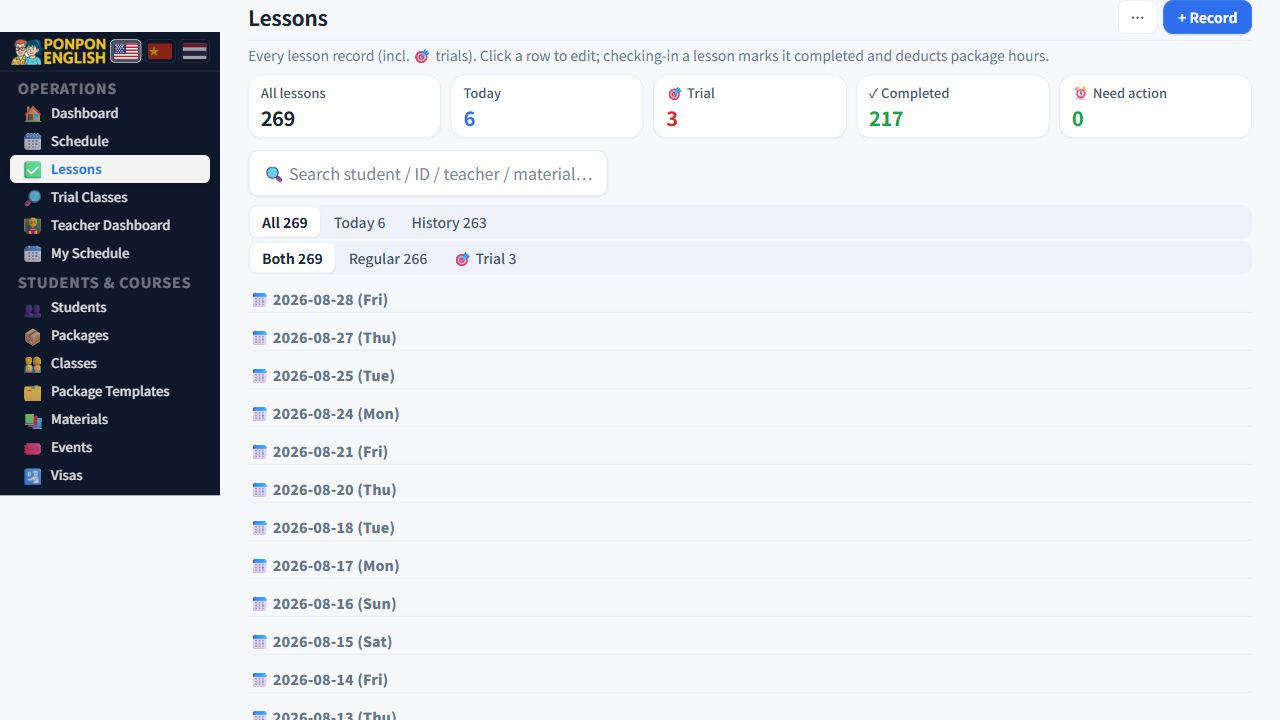
After you finish teaching, open the lesson and mark it done. The Chinese button is 打卡 (mark a lesson done). Do it on the same day, before you go home.
A lesson that is not marked done is not counted for your pay, and it does not reduce the student remaining hours. To the system, that lesson never happened. If you forget for a week, your pay for that week will be wrong and the student will look like they still have hours they already used.
A simple rule: last student leaves, phone comes out, lesson marked done. Every time.
Each lesson has a note field. Write one or two short lines after class. For example: what page you finished, what the student found hard, what to review next time.
Classes get covered by other teachers. Students change teacher. Your note is what makes the next lesson good instead of a fresh start. Keep it factual and professional, because office staff can read it too.
Your own pay page shows the lessons counted for you and the total. Open it before payday and check that the lesson count matches what you actually taught. This is why marking lessons done on time matters.
After the school pays you, open the pay record and press the button that confirms you received the money.
Confirming records proof for both sides. You have a record that you were paid, and the school has a record that the payment was accepted. It removes arguments months later. It takes two seconds.
Do not try to correct it yourself. Do not delete or re-create lessons to make the total look right, because that damages the student hour balance and the accounts.
The office has the tools to fix it properly and can check it against the other records. Your part is to report it early.