Daily operations
Dashboard
Your daily control panel: key numbers, booking approvals and alerts.
Current screens
These images use the current English interface. Student and trial-customer details are replaced with demo labels.
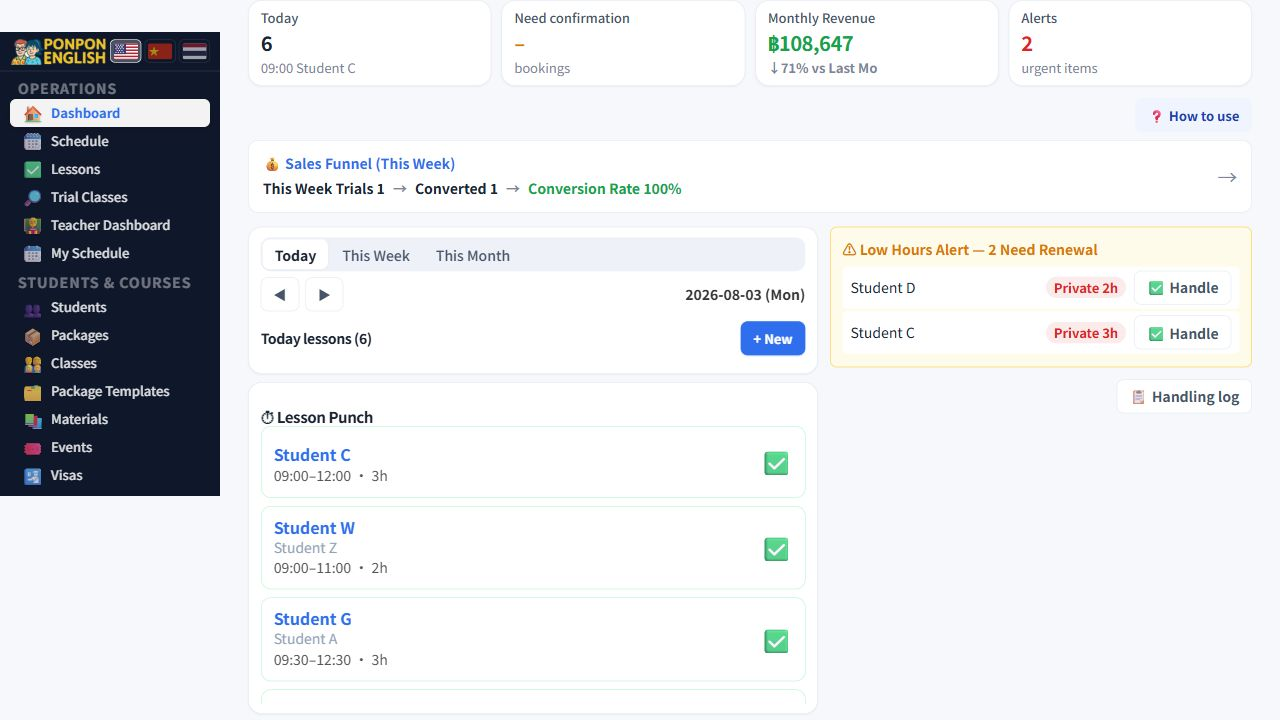
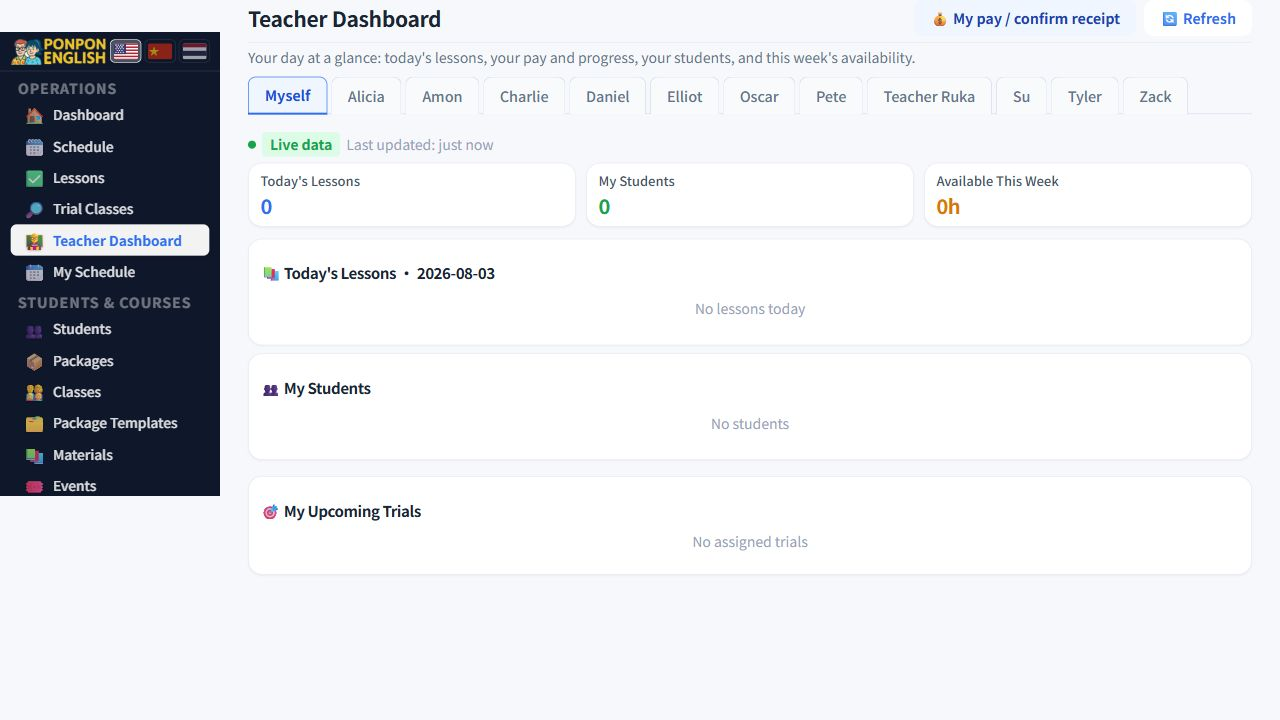
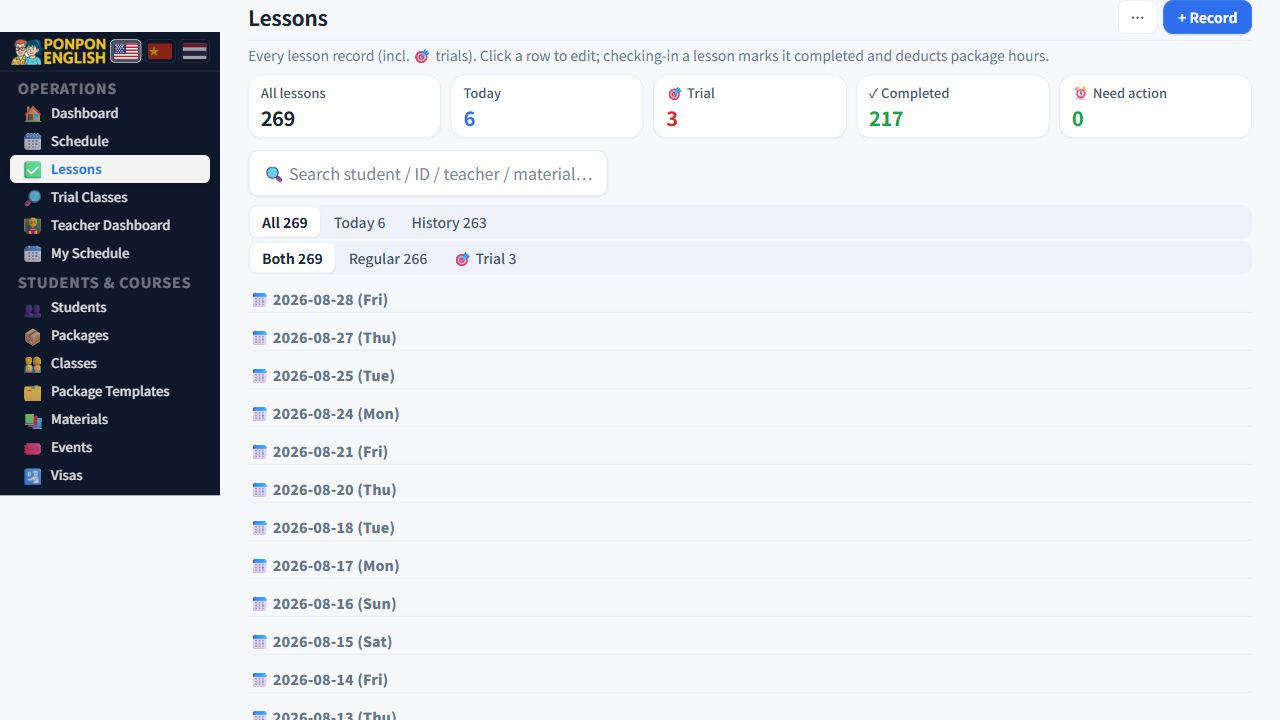
Dashboard
Open 仪表盘 (dashboard) first every morning, then work down the page until it is clear.
The dashboard is the home screen of the system. It does not store anything by itself. It reads your real students, lessons and payments and shows you what needs a person today.
The four number tiles
Four tiles sit at the top of the page. Each tile is one large number with a short label under it. Read the label first, then the number. The label tells you exactly what is being counted, and the number is counted fresh each time the page opens, so it changes during the day.
Every tile is clickable. Tap a tile and the system opens the list of records behind that number. This is the fastest way to move from a number to the actual student or lesson.
A tile is only a summary. If a number looks wrong, the record underneath is wrong. Open the tile, find the record, correct the record. The tile then follows by itself.
What needs attention today
The current dashboard keeps the focus on live work: today's lessons, bookings waiting for confirmation, and alerts that need a decision. Open the item behind a number or alert, fix the underlying record, and let the dashboard recalculate.
Bookings waiting for a teacher
When office staff book a lesson for a teacher, the lesson is not final yet. It goes into an approval queue on the dashboard and waits for that teacher to confirm it.
- Staff create the lesson as usual.
- The lesson appears in the pending queue for the teacher.
- The teacher opens the dashboard and confirms.
- If the teacher does not confirm within a few hours, the system sends a notice back to the person who made the booking.
If you receive that notice, do not wait. Contact the teacher directly, then either confirm on their behalf or move the lesson.
Alert sections
Under the queue, the dashboard groups problems it has found. Each group only appears when there is something in it.
| Alert | What it means | Usual action |
|---|---|---|
| Hours overused | A student has taken more hours than they bought. | Sell more hours or stop booking. |
| Low hours remaining | A student is close to zero hours. | Contact the family before the next lesson. |
| Lessons not marked done | A lesson date has passed and nobody completed it. | Confirm it happened, then complete it. |
| Schedule conflicts | A lesson overlaps time the teacher is not available. | Move the lesson or the blocked time. |
Every alert row has its own handle button at the end of the row. Use it to record what you decided: resolved, postponed, or ignored. The system saves your name with that decision, so the next person can see who dealt with it and when.
Marking a row as postponed or ignored is a real answer. It tells the rest of the team that a human has already looked at it, so nobody chases it twice.
What your role shows you
The dashboard only shows the parts your role is allowed to see. Junior staff work with students and lessons only, so money alerts are hidden from them. Teachers do not see 收款 (payments), 会计 (accounting) or 报表 (reports). If a section described here is missing for you, it is your permissions, not a fault.