Administration
Data consistency
A safe, read-only check that every screen reports the same figures.
Current screens
These images use the current English interface. Student and trial-customer details are replaced with demo labels.
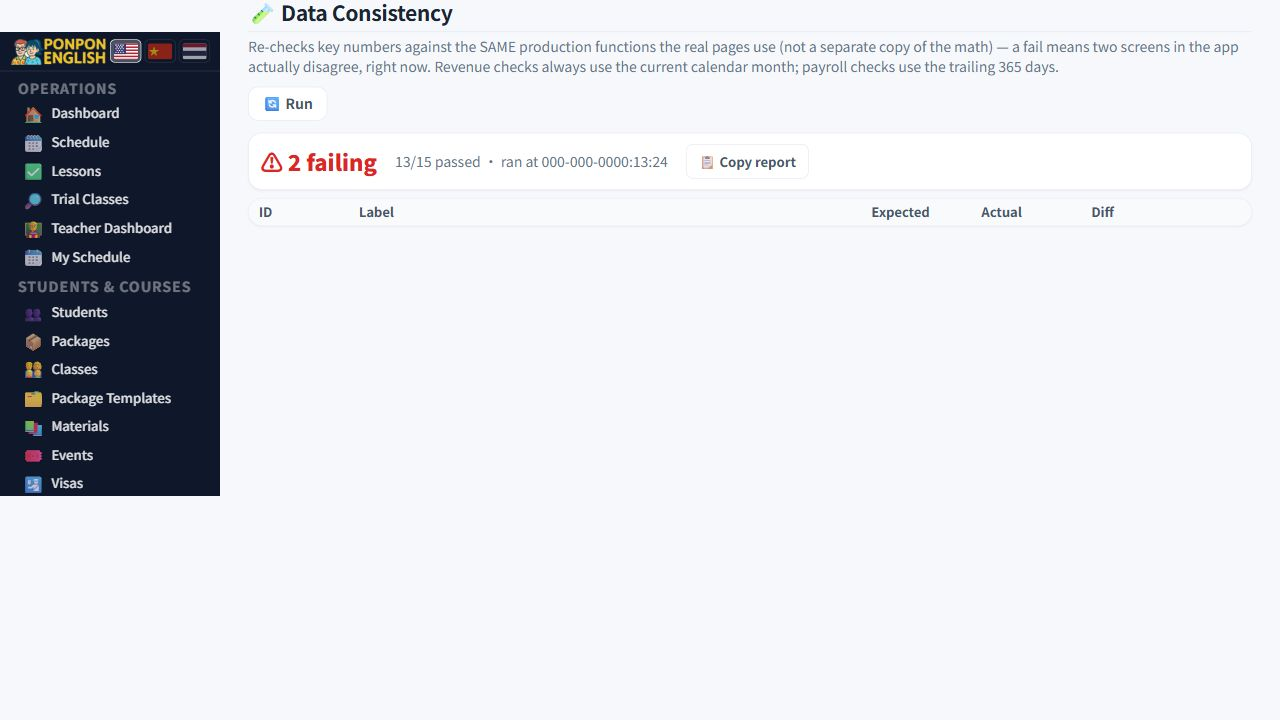
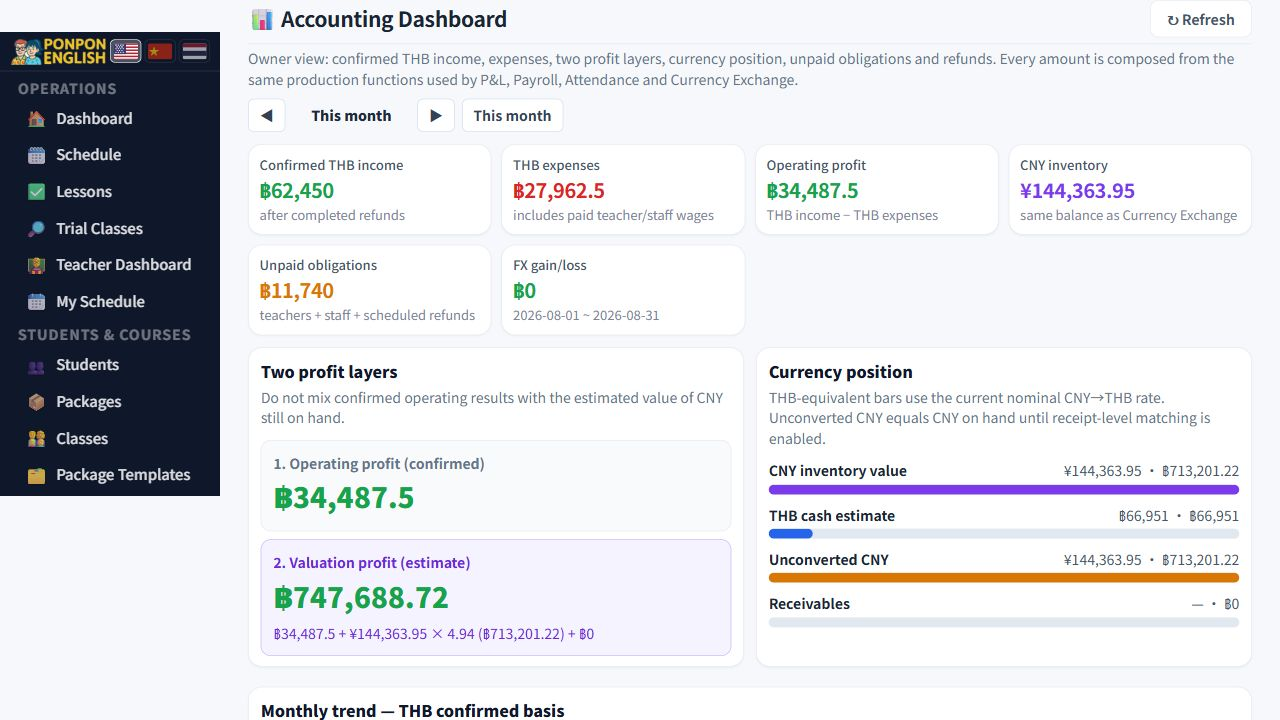
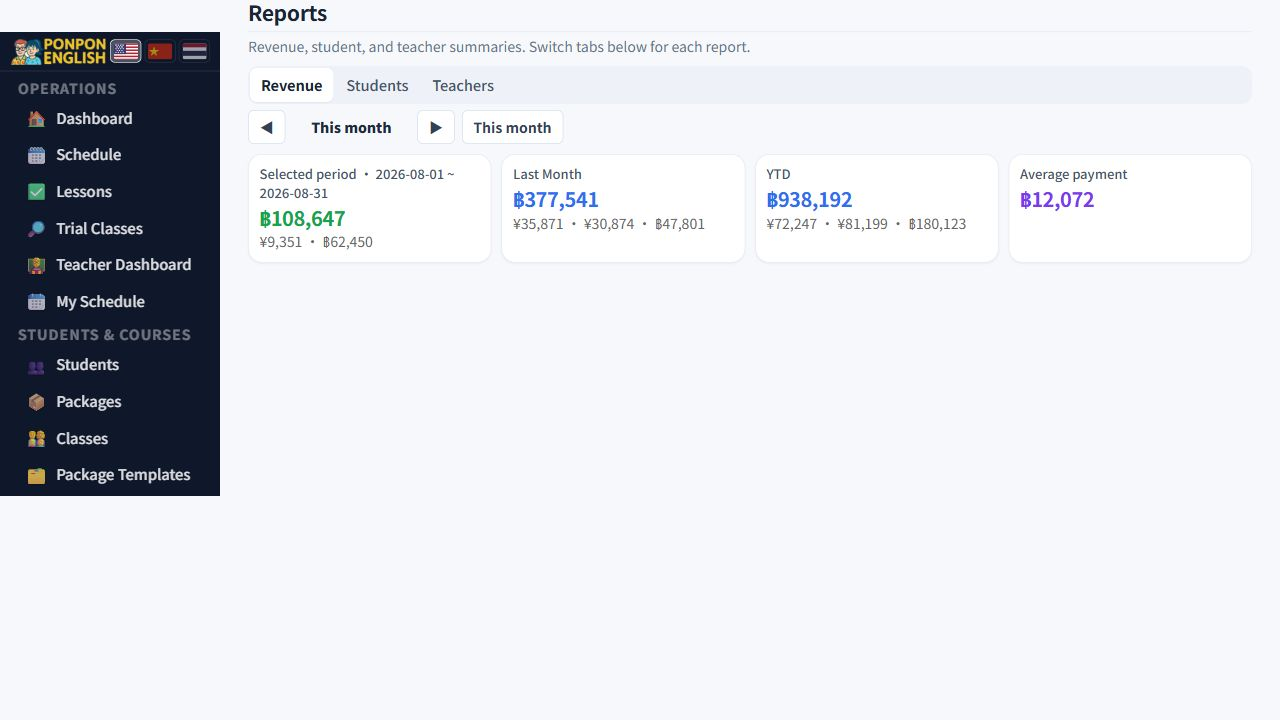
What this screen is
A health check, not a place to edit.
数据一致性 (data consistency) opens only for a WordPress administrator account. It is read-only. It changes nothing, saves nothing and deletes nothing, so running it is always safe.
The check does not simply re-read what is on the screens. It runs the real calculations again from the underlying records, then compares one screen against another. Screens built from the same facts must agree. Where they do not, the check tells you.
The three comparisons
| Check | What it compares | Green means |
|---|---|---|
| Revenue | The revenue shown on the dashboard against the profit and loss figures in 会计 (accounting) | Income is counted once, the same way, on both screens |
| Teacher pay | Each teacher ledger against the pay worked out lesson by lesson | What you owe a teacher matches the lessons actually taught |
| Package hours | The hours stored on each course package against hours recalculated from completed lessons | A student's remaining hours are true |
When every row is green, any screen you open gives the same answer. You can tell a parent how many hours are left, or tell a teacher what they are owed, without checking a second screen first.
When to run it
- At the end of each month, before you close the books or pay teachers.
- After a large import, or after a batch of edits.
- Whenever two screens seem to disagree — run the check before anyone argues about which one is right.
When a row is red
Red does not mean the system is broken, and it does not mean money is lost. It means two figures that should match do not. Work through it calmly.
- Read the row. Write down both figures and the difference between them.
- Note where each figure comes from, for example the teacher ledger on one side and the per-lesson pay on the other.
- Note which student, teacher or package the row names. This is the record you have to look at.
- Open that record and read its recent activity. Common causes are a lesson recorded twice, a lesson marked done for the wrong person, hours edited by hand, or a payment entered twice.
- Correct the record on its own screen. This screen only reports; it cannot fix anything.
- Run the check again and confirm the row is now green.
Never change a total just to make a row turn green. The records underneath would still disagree, and the same row would go red again next month. Find the wrong record and correct that.
Write down what you found and what you changed. If the same kind of row goes red every month, the real cause is a habit in daily work — for example how lessons are marked done. Then you fix the habit, not the number.
If you cannot see why two figures differ, stop and ask the person who entered the records. Do not delete a lesson or a payment to make the check pass.