Administration
Teachers and staff
Add teachers and staff, set pay and access, and handle leavers and returners.
Current screens
These images use the current English interface. Student and trial-customer details are replaced with demo labels.
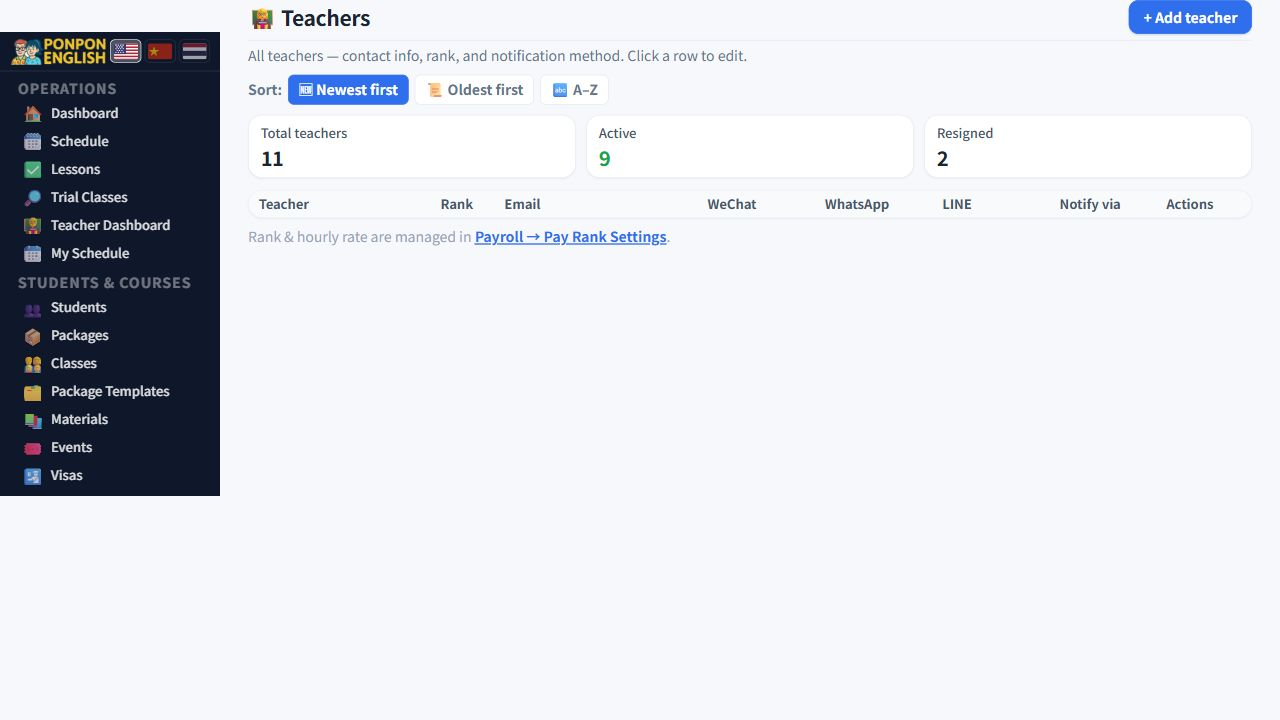
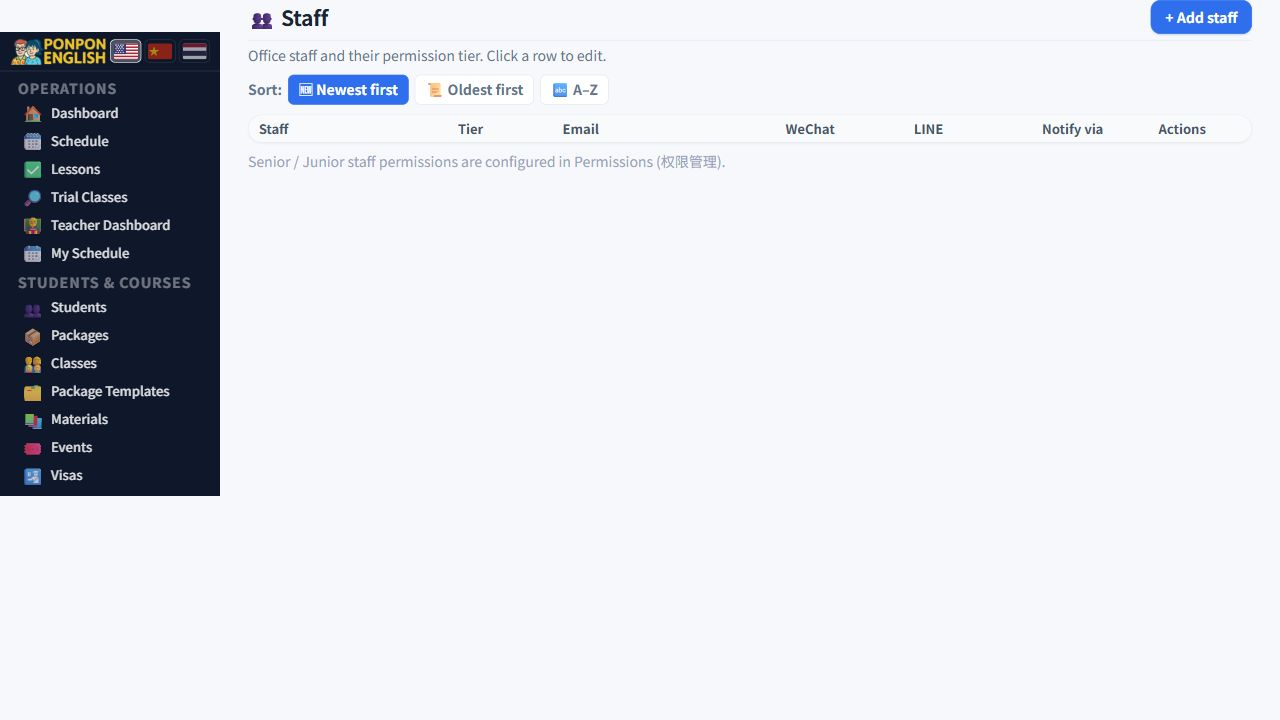
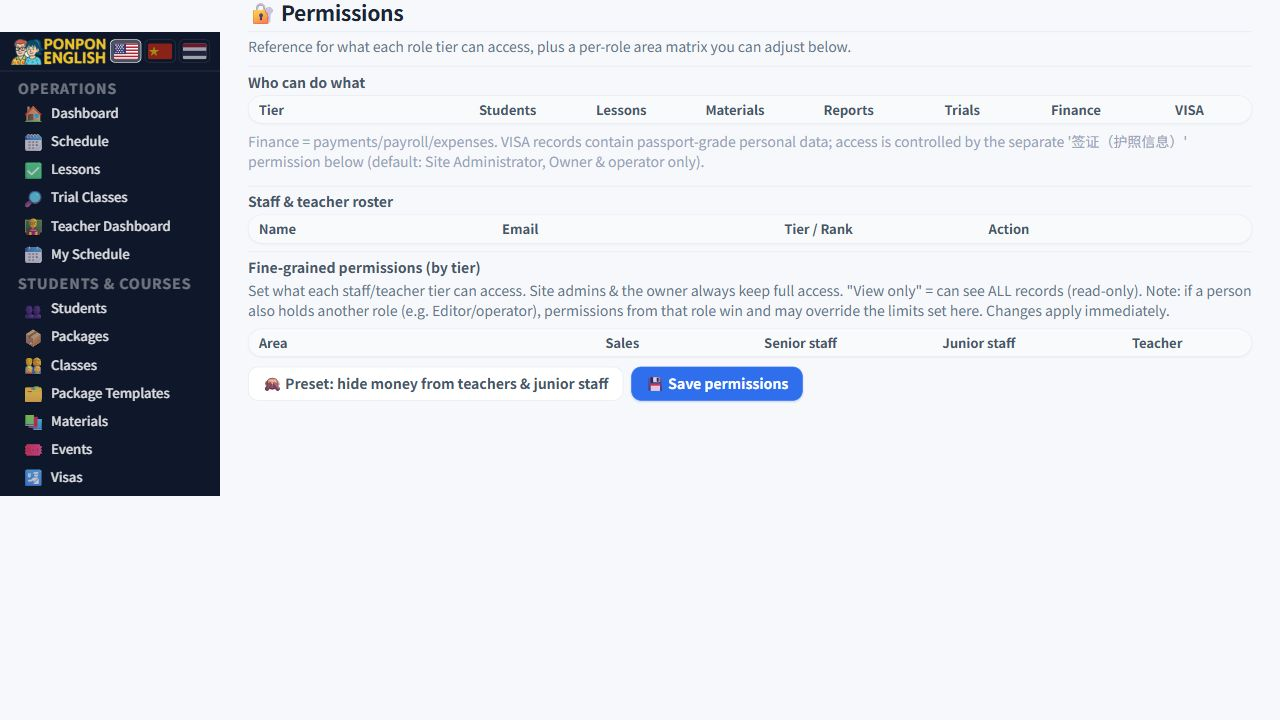
Where these screens are
Two screens, built the same way.
Open the sidebar and find 老师管理 (teacher management). This is the list of your teachers. 员工管理 (staff management) is the list of your office staff. Both are administration screens, so a teacher or a junior staff member does not see them. Once you learn one screen, you know the other.
A teacher record carries the pay rate used by payroll, the login that lets the person see their own schedule, and the employment dates. Fill it in carefully once, and the rest of the system stays correct.
Adding a teacher
- Open 老师管理 and start a new teacher.
- Type the full name and the contact details. Use a working email address, not a placeholder.
- Add a photo if you have one. It makes the person easy to recognise in lists.
- Choose the rank. Each rank carries a standard hourly rate.
- If this person is paid differently from the rank, set an individual hourly rate. The individual rate is used instead of the rank rate.
- Choose the employment type that matches the contract.
- Set the start date, then save.
You do not type the probation end date. It is calculated from the start date. Before that date arrives, a banner appears on the record. The banner gives you time to decide whether to confirm the teacher or end the trial period. Act while the banner is showing.
Payroll multiplies taught hours by this rate. If the rate is wrong, every lesson recorded after it is wrong too. Read the rate back before the teacher's first lesson.
Giving the person a login
A record alone does not give access. Send the login invitation from the person's record. They then set their own password and sign in. A teacher sees their own lessons, their students and their own pay. They do not see other teachers' pay.
A warning badge appears on any teacher without a real email address. The daily schedule email is sent by email, so that teacher will never receive it. Correct the address instead of ignoring the badge.
Resignation, settlement and return
When someone leaves, record the resignation on their record. Do not delete the person. Then complete the settlement, so their final pay is calculated and closed off. All past lessons, hours and pay records stay exactly as they were, which is what you need if anyone asks about last term.
If the person comes back later, reinstate the same record. Their history, rank and rate are still there.
Two records for one person split the lesson history and the payroll in two. Search the list first. If the name is already there, reinstate it.
Office staff
员工管理 works in the same way: add the person, fill in the details, and send the login invitation. What each staff member can then open depends on their role, which is set on the permissions screen.
Removing a staff member takes away their access only. The account is kept and their work is not lost. That means the action can be undone, for example if you removed the wrong row or the person returns.