Daily operations
Schedule
See every booked lesson by month, week, day or teacher timetable, and export it.
Current screens
These images use the current English interface. Student and trial-customer details are replaced with demo labels.
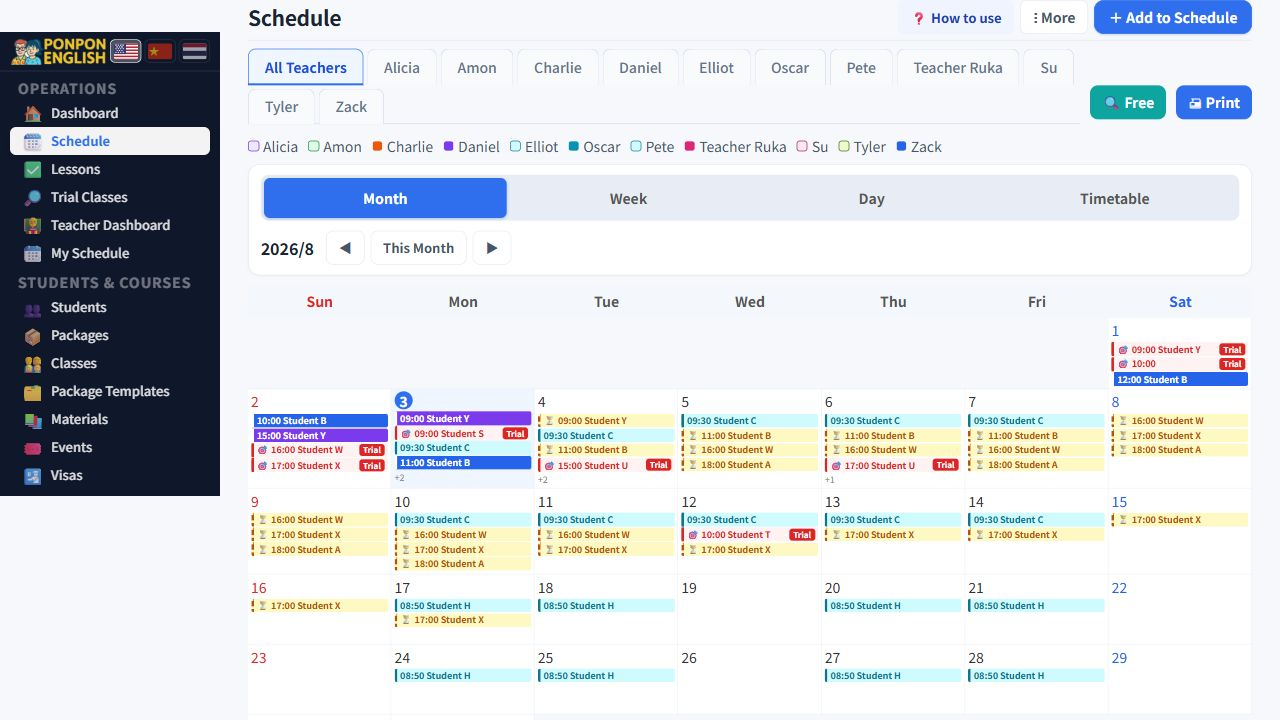
Schedule
日程 (schedule) is the calendar view of every lesson and every trial.
The schedule shows the same data in four different shapes. Nothing changes when you switch shape, only how much you see at once. Pick the shape that answers your question.
The four view modes
| View | Shows | Best for |
|---|---|---|
| Month | A whole month, a few lessons per day. | Planning ahead, spotting empty weeks. |
| Week | Seven days with the lessons of each day. | The normal working view. |
| Day | One day in full detail. | Checking today before it starts. |
| 课表 (timetable) | One day as a grid. Teachers are the columns, times are the rows. | Seeing all teachers side by side and finding a free slot. |
The timetable view is the one to use when a parent asks for a new time. You can see every teacher in one screen and find the empty box immediately.
Filtering by teacher
Along the top of the schedule there is a row of teacher tabs. The first tab shows all teachers. Tap any teacher name and the calendar keeps only that teacher.
Each teacher also has their own colour. The colour stays the same in every view, so after a few days you will recognise a teacher by colour without reading the name.
Reading the colours
- A normal lesson uses the colour of the teacher who teaches it.
- A trial lesson is shown in red so it stands out from paid lessons.
- Time when a teacher cannot teach is drawn as a grey band across that part of the day.
The grey band is blocked or unavailable time. The system will not stop you from placing a lesson on top of it, but the dashboard will report it as a schedule conflict afterwards. Look at the grey before you book.
Printing the schedule
The schedule can be printed. Choose the view you want on paper first, because printing follows what is currently on screen. A day or week view prints well. A month view becomes very small.
Print the day view each morning and keep it at reception. Staff can answer parents without opening the system.
Sending the schedule to a phone calendar
The schedule can be exported as a calendar file. The file can then be imported into Google Calendar or most other calendar apps.
- Open the schedule.
- Open the extra menu at the top of the page, marked with three dots.
- Choose the ICS export item.
- The file is downloaded to your device.
- In Google Calendar, use its own import function and select the downloaded file.
Blocked and unavailable time is included in the file, so the imported calendar also shows when a teacher is not free.
The exported file is a snapshot of the moment you created it. Later changes made in the system do not travel to Google Calendar. If the schedule changes, export again. The system stays the single source of truth.
On a phone
The schedule works on a phone as well as on a computer. On a phone there is a plus button on the schedule screen. It adds a new lesson for the day you are currently looking at, so choose the correct day first, then press plus. This saves you typing the date.
If you use the app from the home screen of your phone, the schedule behaves the same way as in the browser.