Students and courses
Students
The student list, status groups, hour badges and what is inside a student profile.
Current screens
These images use the current English interface. Student and trial-customer details are replaced with demo labels.
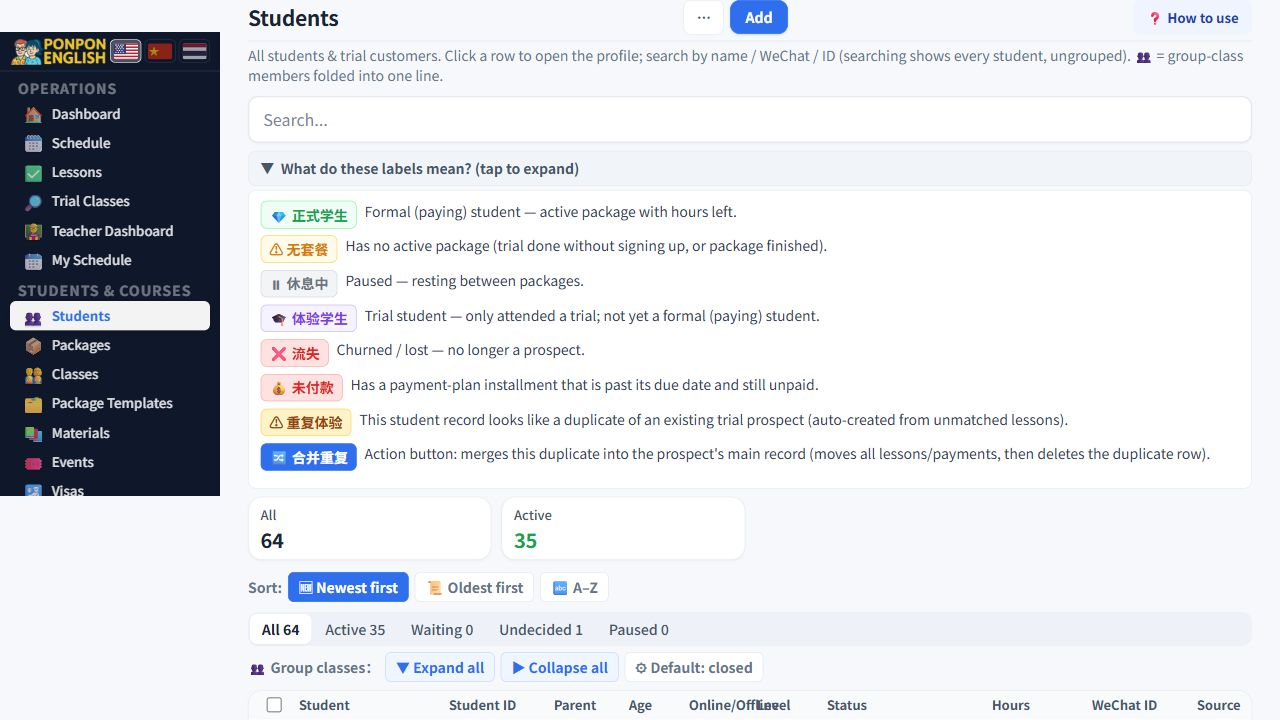
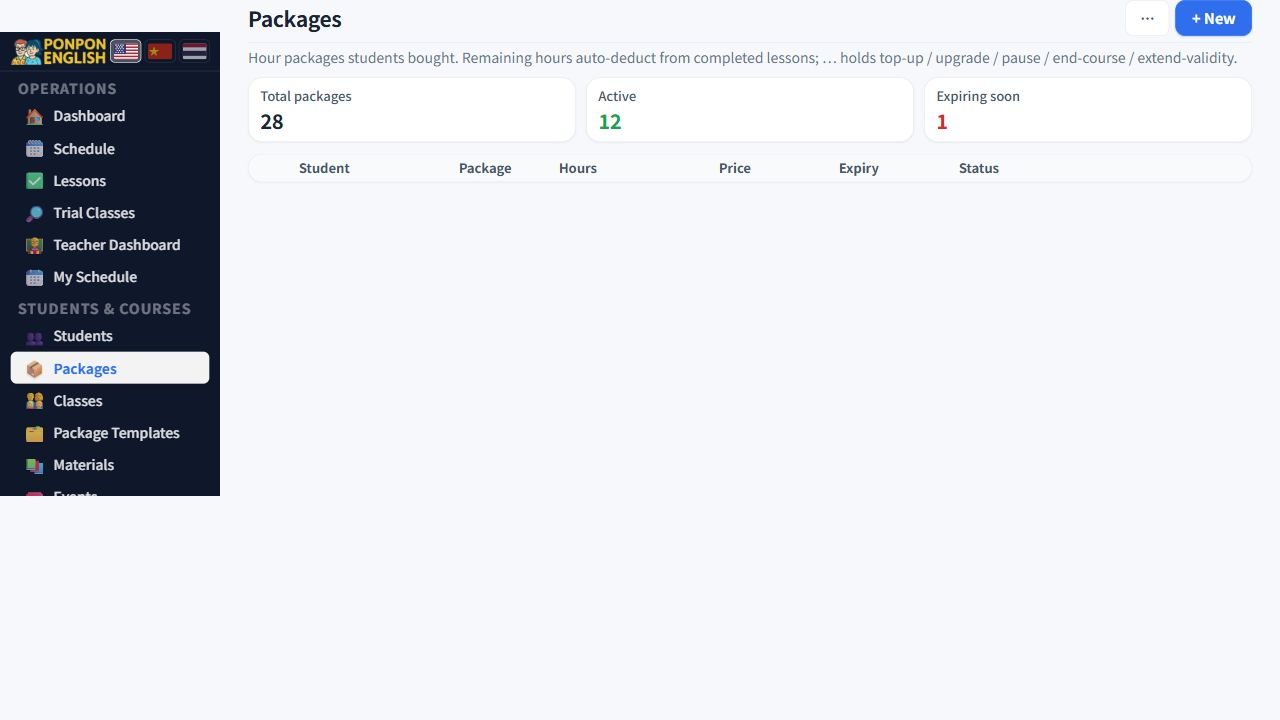
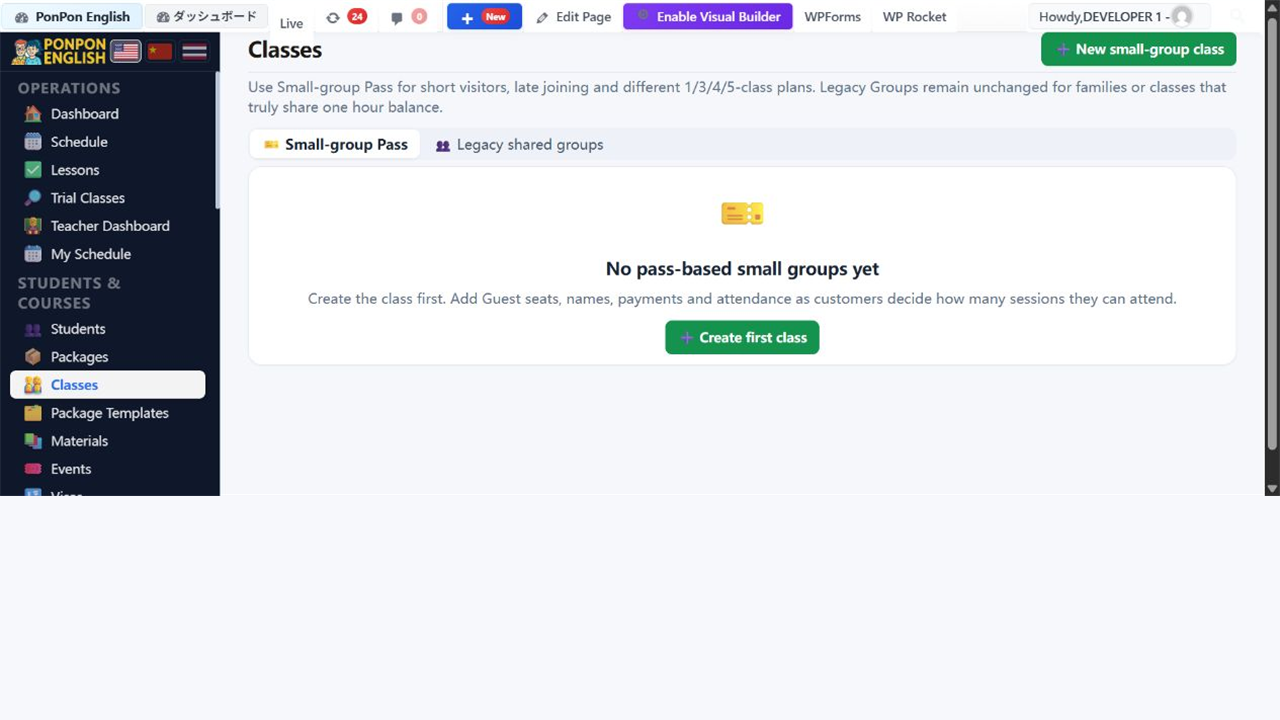
Students
The main working screen: who studies here, what they bought, and what is left.
Open 学生 (Students) from the 学生·课程 (students and courses) group in the sidebar. The list opens with the newest student at the top. Most daily work starts here.
Reading the list
One row is one student. The row shows the name, the status and the hours that are still available. Click any row to open the full profile.
- Sorting: newest first (the default), oldest first, or A-Z by name.
- Search: type part of a name to filter the list. Clear the box to see everyone again.
Status groups
Every student is placed in a group automatically. You do not set this by hand. It follows the packages the student owns.
| Group | What it means | What to do |
|---|---|---|
| 缴费在读 (paying and studying) | The student has a paid package with hours left. | Nothing. This is the normal state. |
| 休息中 (paused) | The package is paused. The hours are kept and are not lost. | Restart the lessons when the student comes back. |
| 无套餐 (no package) or 仅体验 (trial only) | The person is on the books but has bought nothing, or has only taken a trial lesson. | Follow up. This is your sales list. |
| 流失 (left) | The student has stopped studying. | Keep the record. Do not delete the history. |
Students who share a group class are shown next to each other, not scattered through the list. You can fold that block closed when you do not need to see the whole group.
Hour badges
Two small badges warn you before money is lost.
- A red badge marks a student who has used more hours than were bought.
- An amber badge marks a student whose remaining hours are low.
A red badge means lessons were taught for free. Either ask the family to buy more hours, or check whether the lessons were recorded against the wrong student or the wrong package.
The student profile
Click a row to open the profile. It holds everything about one student in one page:
- Contact details: phone, messaging ID, parent and address.
- Package cards. Each card shows hours bought, hours used and hours remaining, with the price and the validity date.
- Lesson history: every lesson, with the date and the teacher.
- Attendance: who came and who did not.
- Notes: free text for anything the office and the teachers must remember.
- A button to link brothers and sisters, so one family is handled as one household.
Each time you open a profile, the system re-reads the completed lessons and rebuilds the used and remaining hours on every package card. If a total looks wrong anywhere in the app, open the student profile once, then look again.
Teachers can open and manage students. Junior staff see students and lessons only. Money screens stay hidden from both.