Simple guide
A quick, easy overview.
Getting started
How the owner reads the numbers, decides, and knows which screen to trust.
Watch the system
Start with the Simple guide for a quick overview, then use the Detailed guide for the complete step-by-step process. Both are available below.
A quick, easy overview.
The full process, step by step.
These images use the current English interface. Student and trial-customer details are replaced with demo labels.
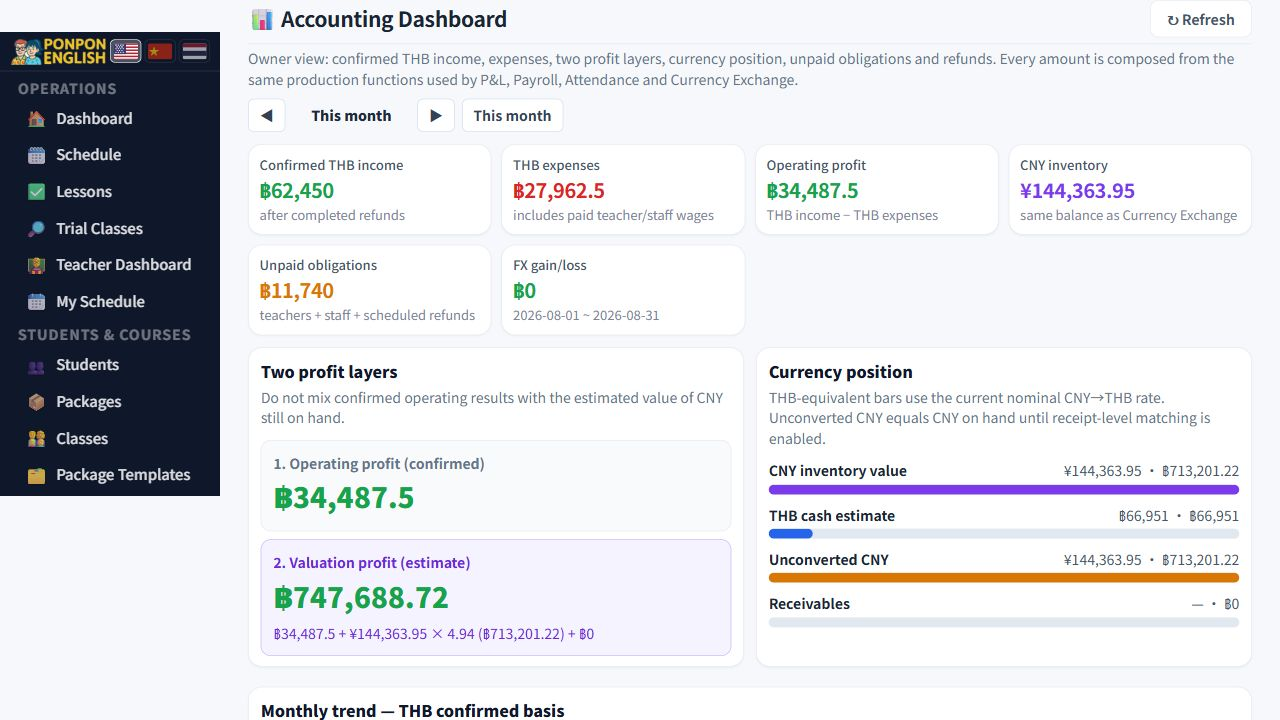
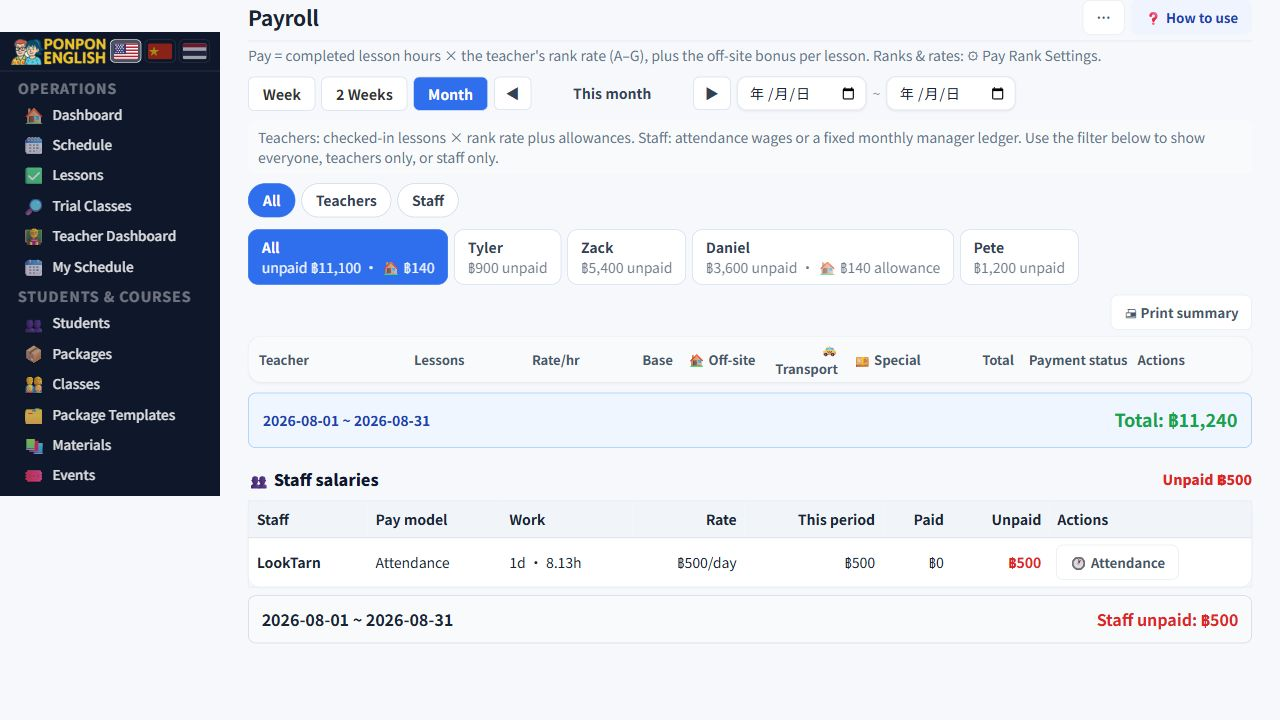
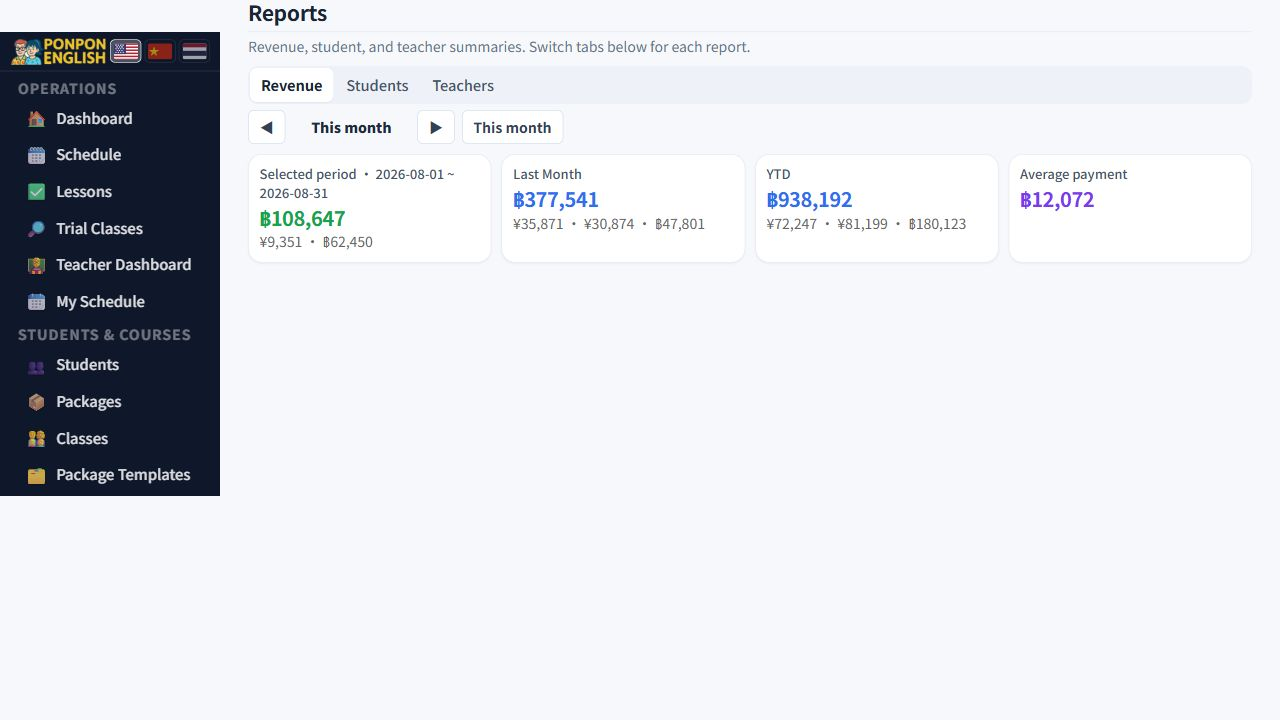
Read the numbers and decide. Once a week is enough.
You do not need to enter data every day. Your staff does that. Your job is to look at a small number of screens, understand what they mean, and make the decisions only you can make.
The app opens in Chinese. To change the language, use the flag buttons at the top-left of the sidebar. English, Chinese and Thai are available.
At the top of the dashboard there are four tiles. Each tile is a number. Each tile is clickable, and clicking it opens the list behind that number. Always click, do not guess.
| Tile | What it means | What to do |
|---|---|---|
| Today lessons | Lessons scheduled for today. | Click to see who teaches what. |
| Awaiting confirmation | Bookings staff created that the teacher has not confirmed yet. | If this number stays high, chase the teachers. |
| This month revenue | Money received this month. | Read the warning below. |
| Alert count | Problems the system found for you. | Click and clear them. |
The tile called this month revenue is money received. It is not profit. Teacher pay, staff pay and rent still come out of it. Never judge the health of the school from this tile. Judge profit only from the profit and loss report in 会计 (accounting).
The most important section on this page.
Two screens can show different numbers for the same thing. That is normal, because each screen answers a different question. Do not argue with the screens. Use this table to decide which one is the answer.
| Question | Trust this |
|---|---|
| What did this student buy, and how many hours are left? | The package card on the student profile. |
| How much do we owe this teacher? | 工资 (payroll) and the teacher ledger. |
| Did the school make money? | Accounting Dashboard: read confirmed operating profit first, then the CNY valuation layer. |
| Do these three agree with each other? | 数据一致性 (data consistency). It compares them automatically. |
Hours come from the student profile. Teacher money comes from payroll. Profit comes from accounting. If they disagree, open the data consistency page instead of doing the maths yourself.
设置 (settings) and 数据一致性 (data consistency) need a WordPress administrator account. A normal owner or manager login does not open them. Ask for that account once, at setup, and keep it safe.
Ten minutes, once a week, is enough to catch almost every problem while it is still small.
Values that change with your business, such as rates, allowances and warning levels, are edited on screen in the settings pages. You never need to call a developer to change a number.